
Refresh a Query
The platform allows you to manually execute the Query against the Loyalty database to refresh the results.
Note: Instead of running the Query against your Loyalty database, you can upload a file containing the Query results you want to use. See Create a Query for more information on how to upload this Query File. When you upload a file and enable it, the platform will display the contents of that file in the Results tab. If you instead want to run the Query against the database, be sure any previously uploaded Query File has either been removed or disabled.
To refresh the results of an Analytics Query:
-
Select Analytics from the top navigation bar, then select Settings > Queries from the side navigation menu. The Analytics Queries screen is displayed.
-
Optionally, search for and select the desired Query (see
-
A Query can optionally have multiple versions defined for it (such as a Query with a Hive syntax version and a Trino syntax version), but only one version can be selected at a time. The platform will always execute the currently selected Execution Type, which can be identified by looking in the Query String section of the Definition tab. If you need to select a different Execution Type, click Edit within the Query String section. From the Execution Type drop-down menu, select the desired Execution Type, then click Save.
-
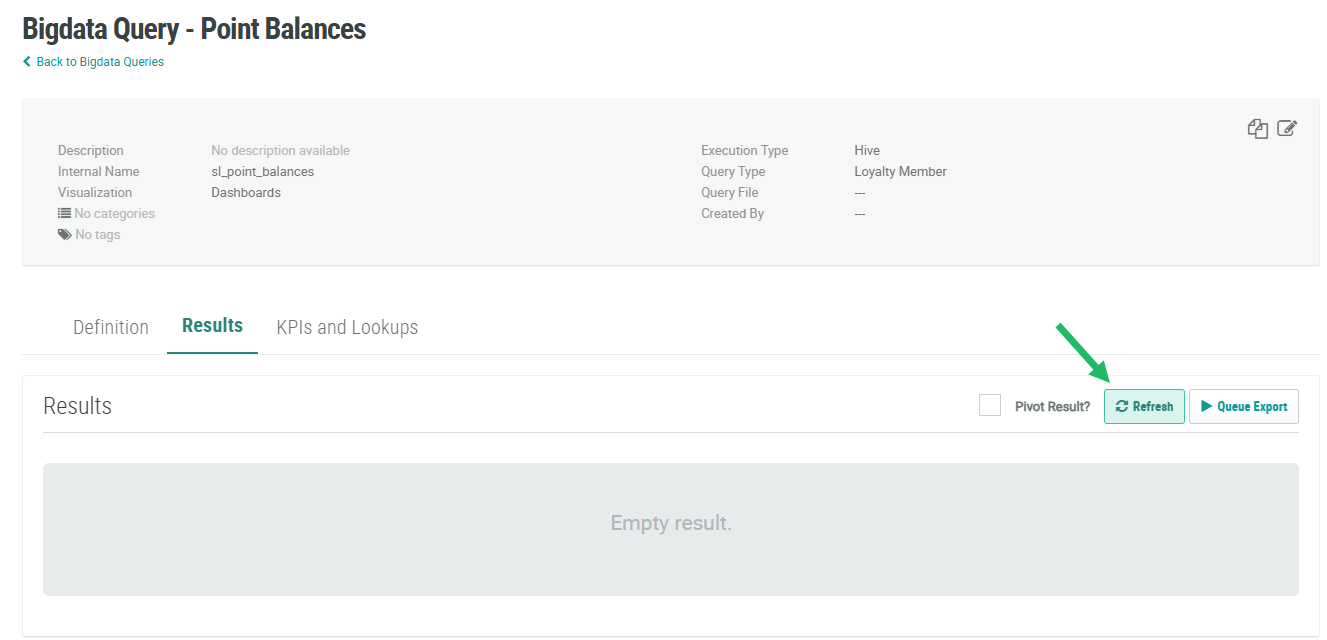
Select the Results tab.
-
Click Refresh. The platform executes the Query. During the execution process, the Refresh button is disabled.
-
When the Query has finished executing, the results are displayed within the Results tab.
